This tutorial uses KingCMS X1 itself as an example to demonstrate how to organize product information, create a page, and check the published result. The same method can also be used for a company's own product or service pages.
1. First think clearly about what information to write
| Information | Why write it | Basis for filling it in this tutorial |
|---|---|---|
| Name and category | Let customers know what it is | KingCMS X1, content management system |
| Applicable tasks | Let customers judge whether it applies | Only fill in uses verified by the current version |
| Actual capabilities | Let customers understand what can be done | Feature descriptions, operation images, and actual pages |
| Usage conditions | Avoid misjudgment | Real runtime requirements and usage limits |
| Fees and licensing | Explain how to obtain and use it | Current licensing page; do not invent prices |
| Demo or materials | Provide viewable evidence | Valid demo, installation, and usage documentation |
| Update information | State the version and date the materials apply to | Actual version and modification date |
2. Actual operation steps
The following steps were completed according to the actual admin interface in a local test environment (X1.0.0-alpha, PHP 8.4.26, SQLite, 2026-10-19).
1. Enter category management
After logging into the admin, find "Category management" under "System settings."
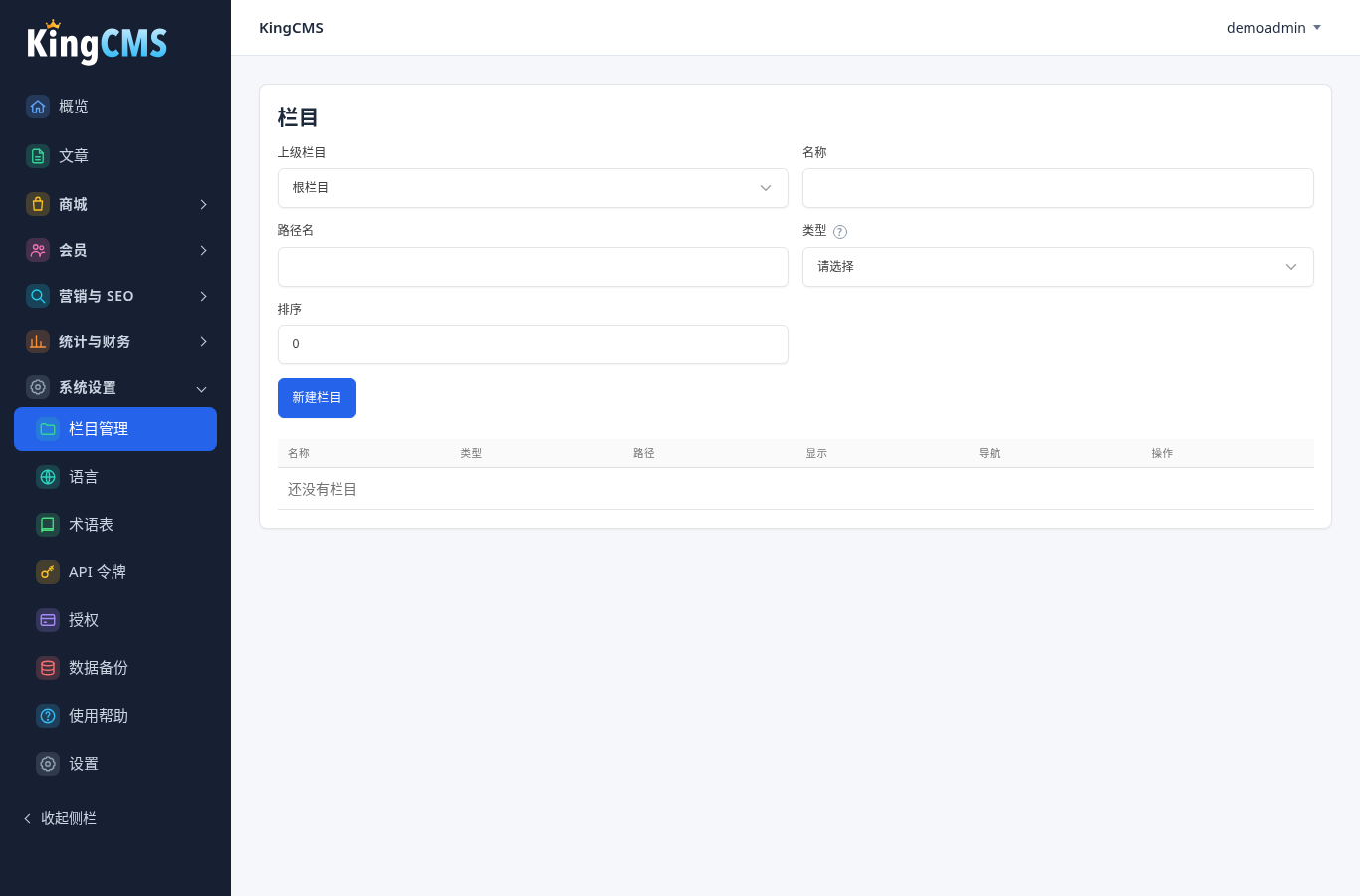
2. Create a new category
Click "New category" and fill in: parent category = root category, name = KingCMS X1, path name = kingcms-x1, type = single page, sort order = 0, then click "New category."
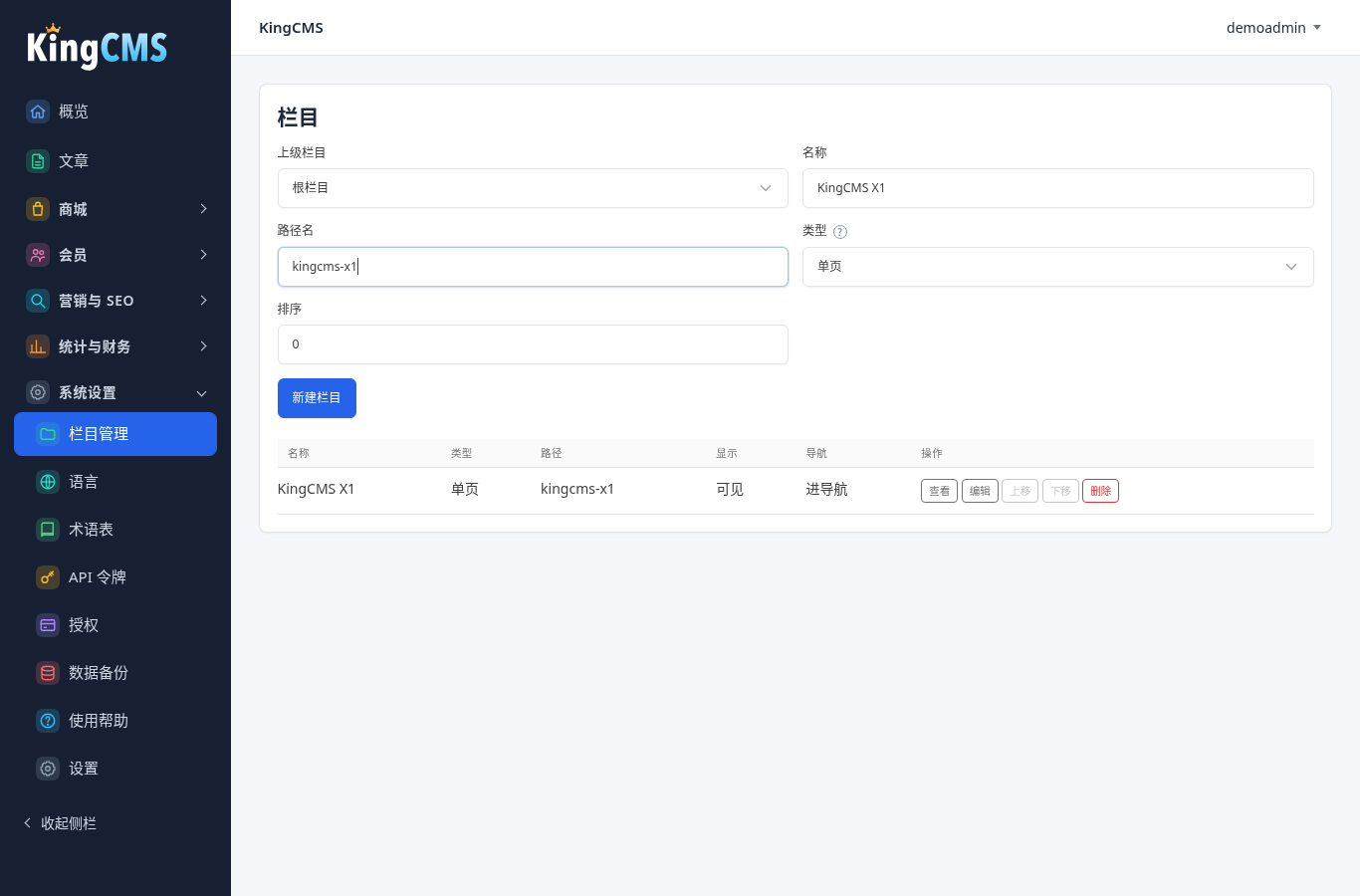
3. Edit the category content
In the category list, click edit and fill in the lead and body. The body editor supports headings, bold, italic, lists, quotes, links, images, tables, and undo. You can set the SEO title, keywords, and description, and add frequently asked questions (FAQ).
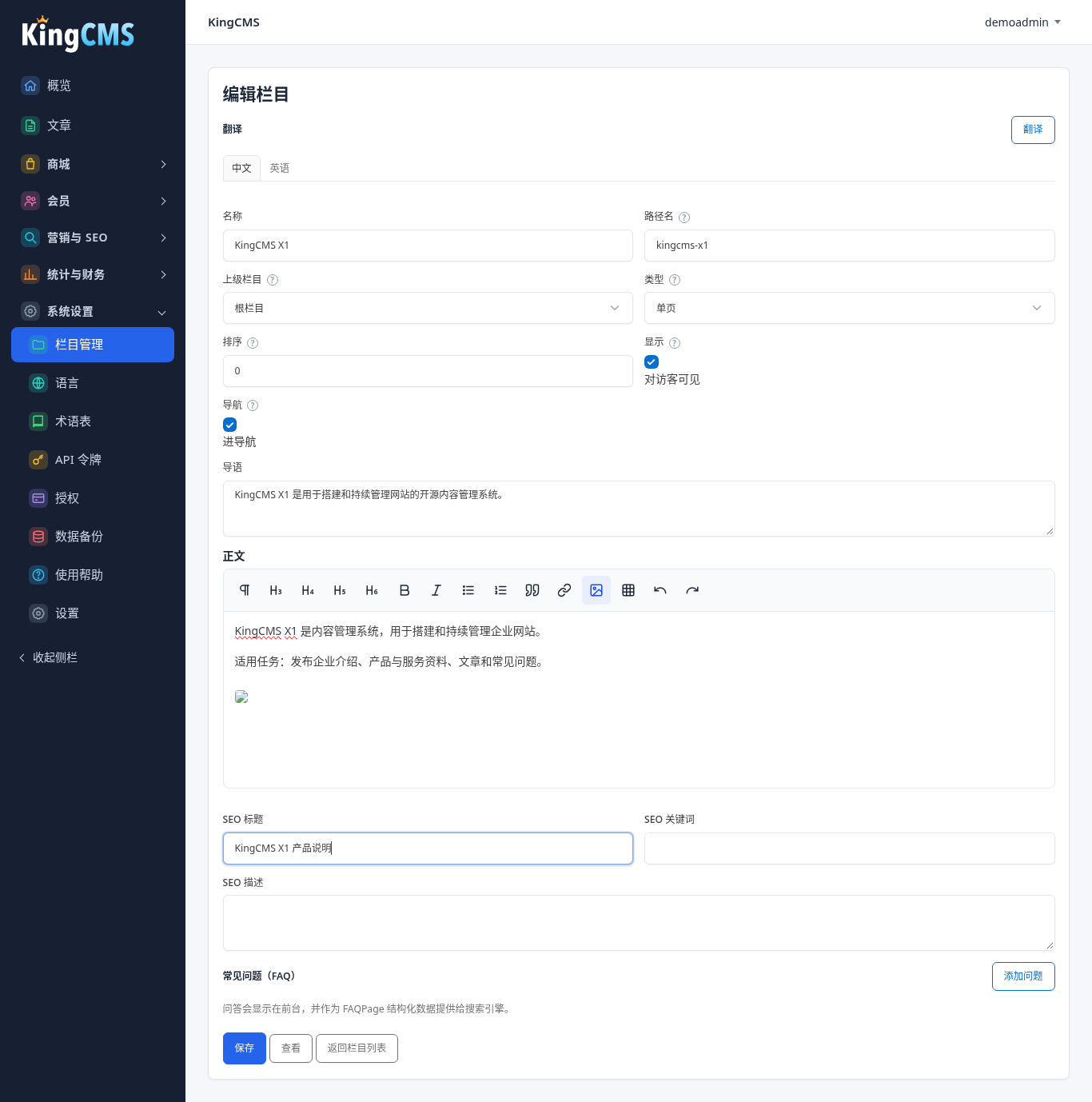
4. Insert images
In the body editor, use the image button to upload and insert actual product images or interface screenshots.
5. Add frequently asked questions
In the "Frequently asked questions (FAQ)" area, click "Add question" and fill in the question and answer. This content is displayed on the front end and provided as FAQPage structured data.
6. Translate (optional)
On the edit page, switch to the "English" or other translation tab and click the "Translate" button to enter the corresponding language content. When no translation is entered, the front end displays the default language.
7. Save and view
Click "Save," then click "View" to open the front-end page and check the text, images, and links.
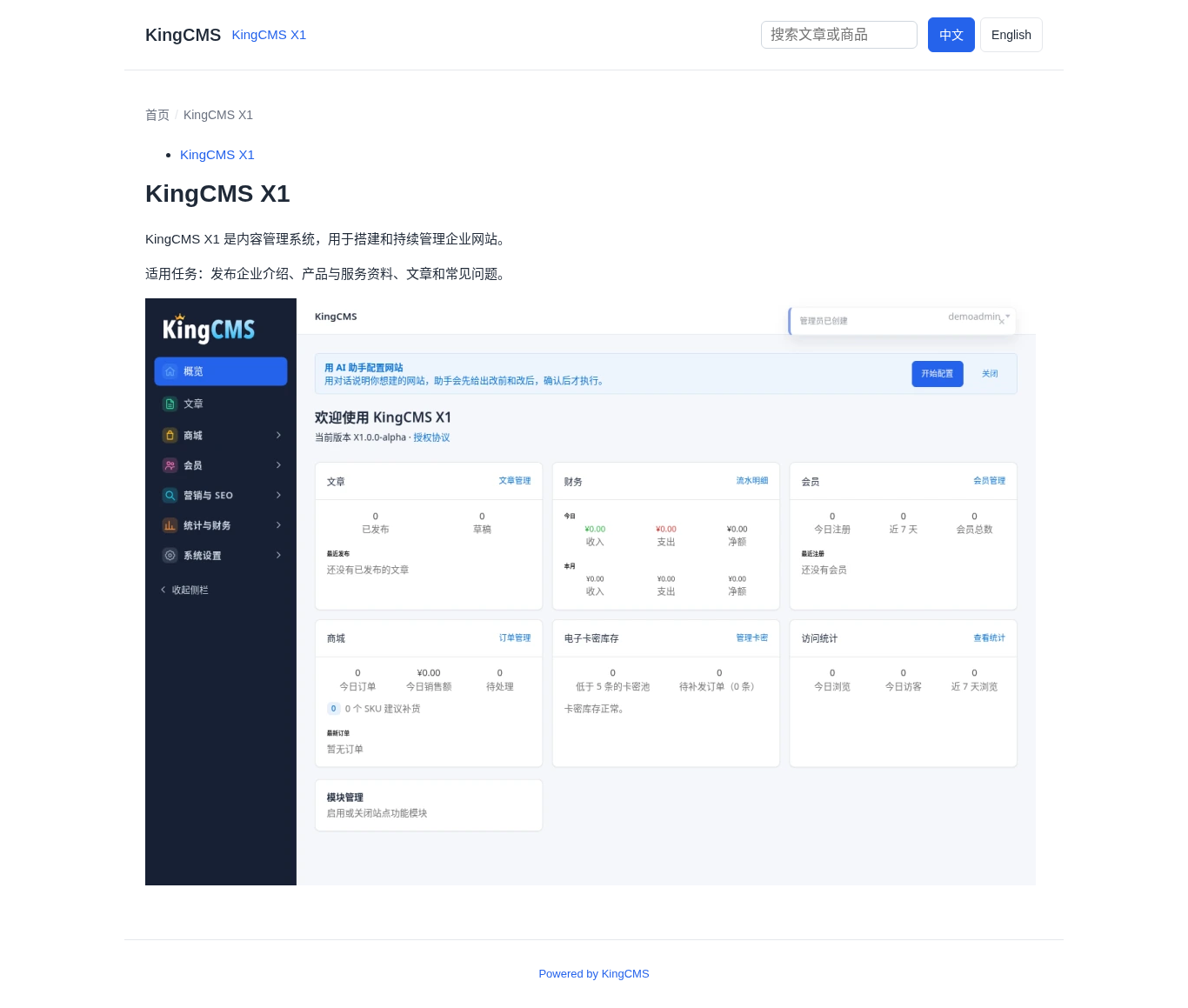
8. Check mobile display
Open the same page at mobile width and confirm there is no horizontal overflow, text obstruction, or button overlap.
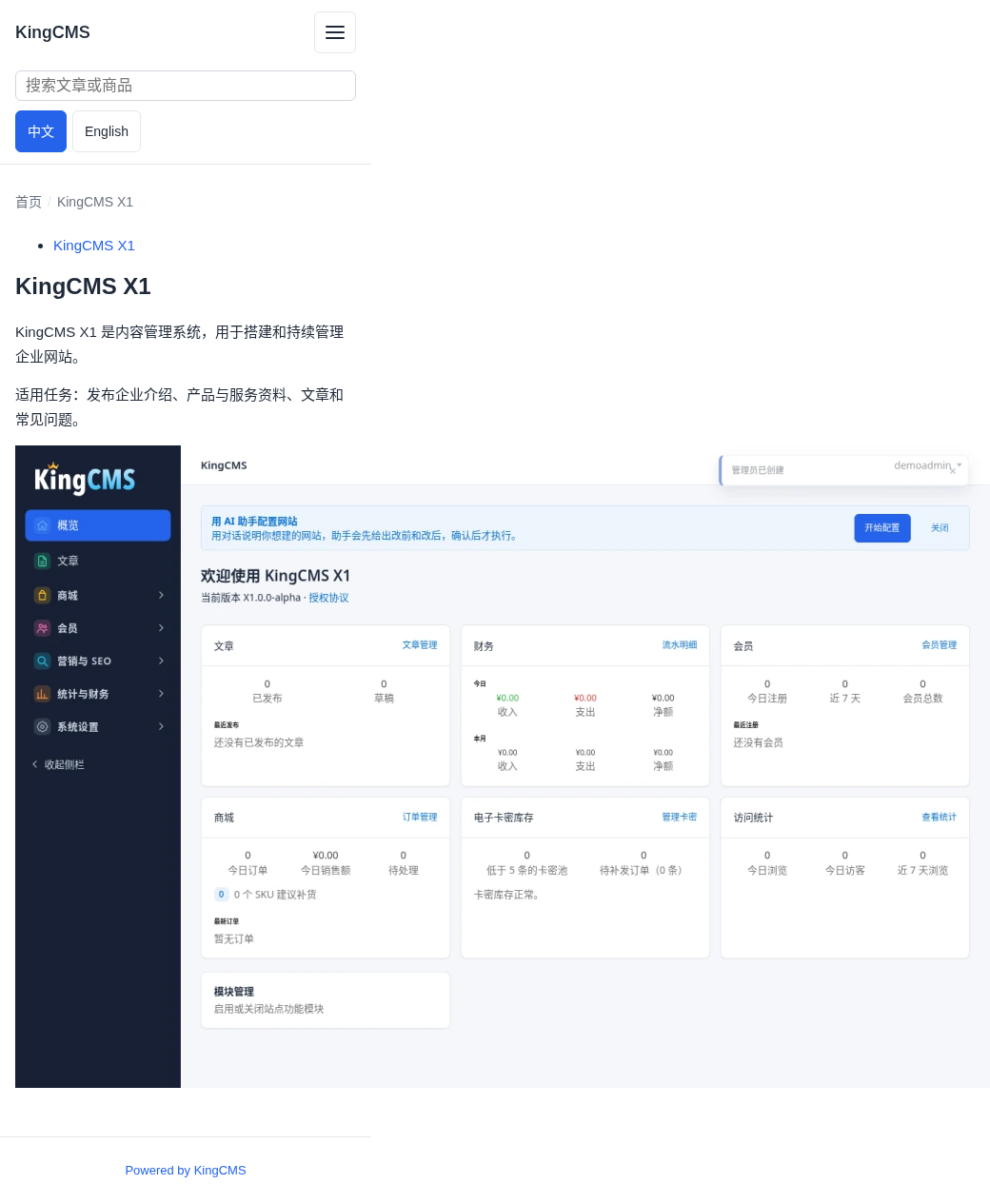
3. Publishing checks
- Are the name, purpose, and usage conditions clear?
- Do the product data and the page statements match?
- Are the images real and clear?
- Are the documentation and contact entry points valid?
- Does it include unfinished features or unsupported promises?